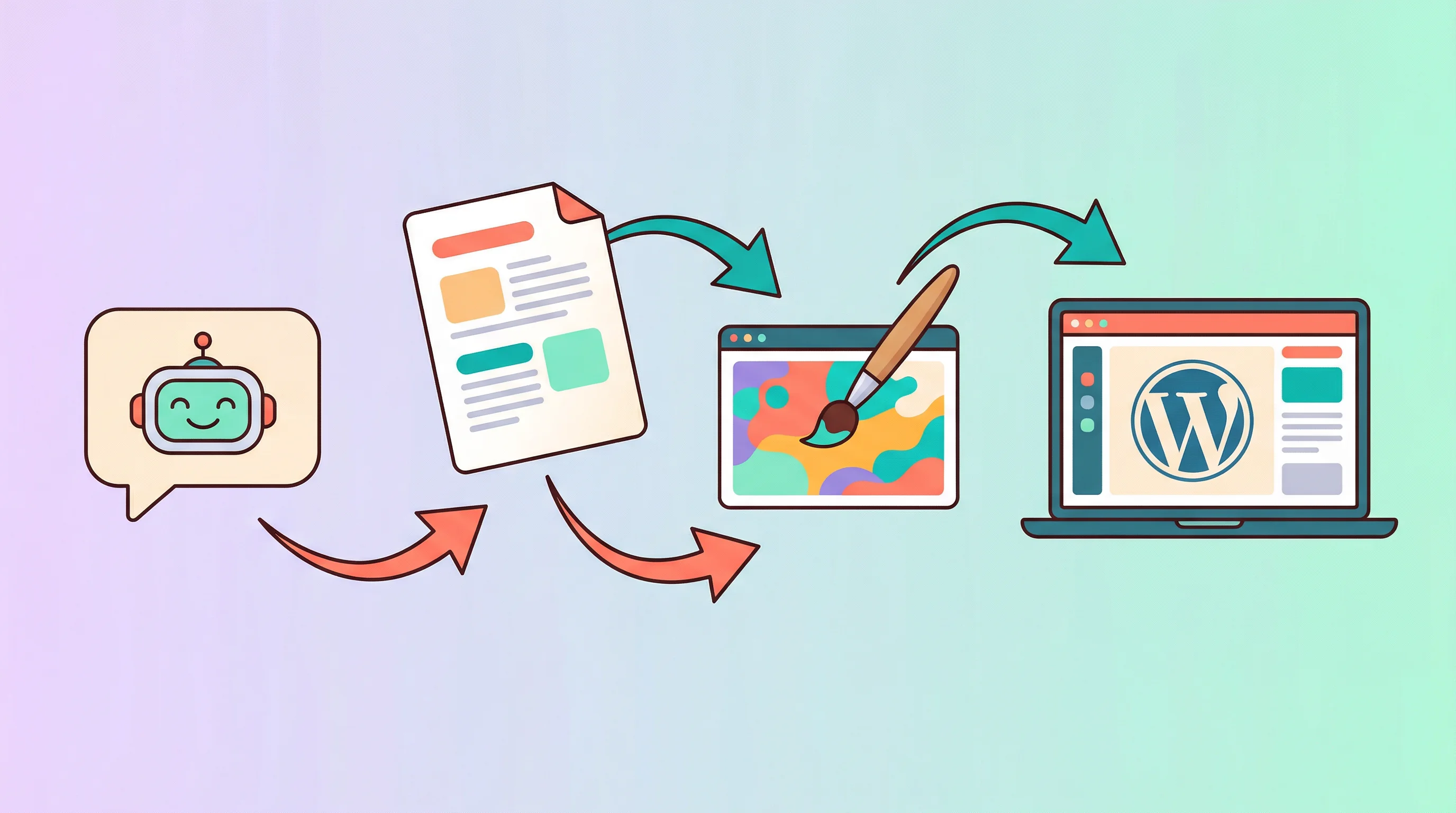
No Code Required: 5 Ways to Automate Your Work with OpenClaw
You don't need to be a developer to use OpenClaw. Here are 5 practical things you can automate today — all from a dashboard, no terminal required.

OCLauncher Team
Building AI tools that work while you sleep.
No Code Required: 5 Ways to Automate Your Work with OpenClaw
There is a common misconception about OpenClaw: that you need to be a developer to use it. It makes sense — it is an open-source project with 270K+ GitHub stars, it runs on Node.js, and the documentation talks about config files and CLI commands.
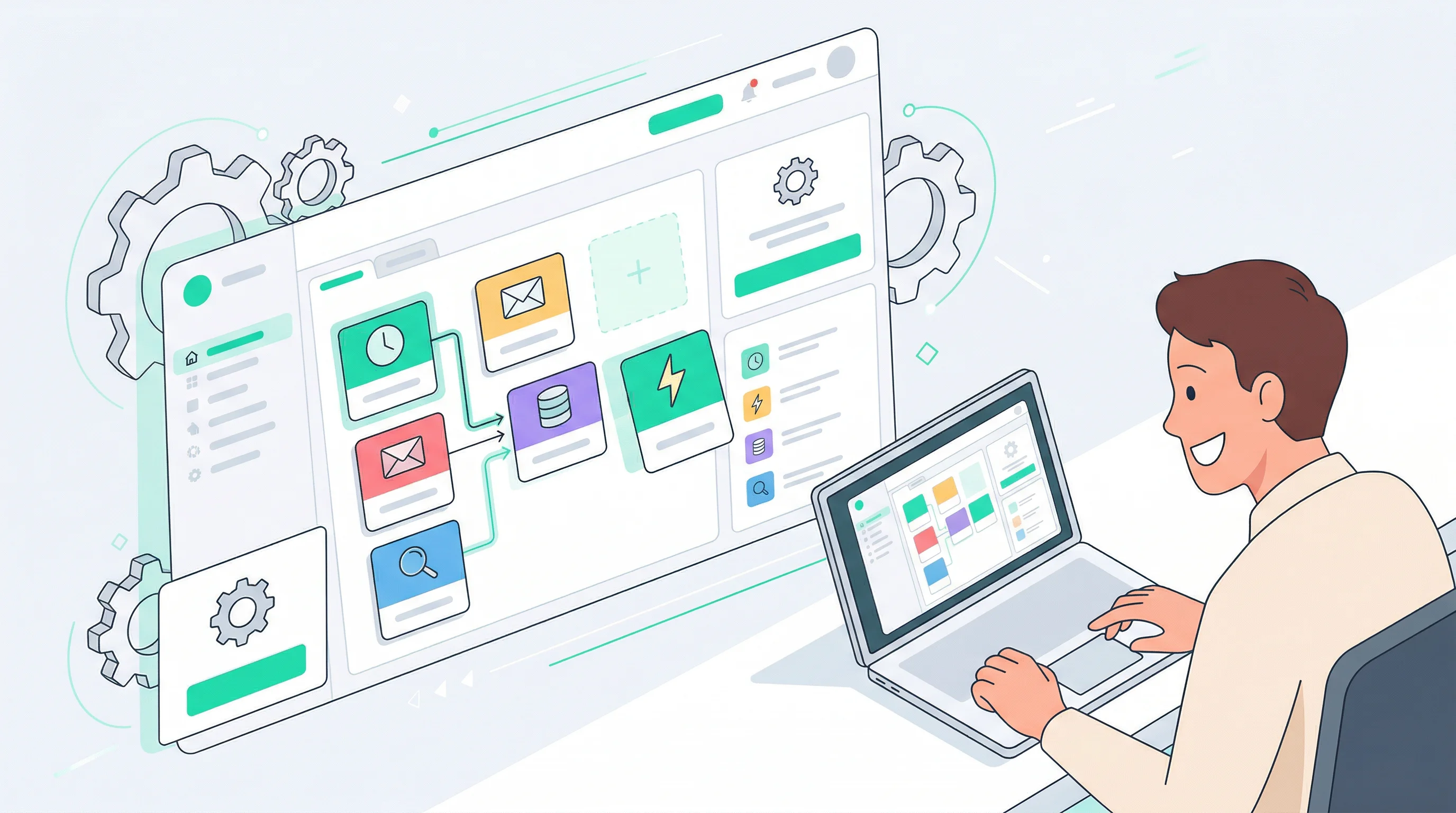
But if you use OCLauncher, none of that matters. Everything happens through a dashboard. You click buttons, scan QR codes, and type instructions in plain language. No terminal. No config files. No code.
Here are five practical things you can set up today, each in under ten minutes.
1. Auto-Reply on WhatsApp
This is the number one reason people try OpenClaw. You connect your WhatsApp account, and your AI agent responds to messages on your behalf — 24 hours a day, 7 days a week.
The setup takes about two minutes: go to the Channels page in your OCLauncher dashboard, click “Add WhatsApp,” and scan the QR code with your phone. That is the entire technical process. (We have a full walkthrough here if you want the details.)
Once connected, your agent handles incoming messages automatically:
Customer: “Hi, what are your prices for logo design?”
Agent: “Hi! Our logo design packages start at $500 for a basic logo with 3 concepts, and $1,200 for a premium package including brand guidelines. Would you like more details on either package?”
You control who can message the agent through an allowlist. Add your own number for personal use, add customer numbers for business use, or add family members so everyone can ask the AI questions.
The best part: you set the agent’s personality and knowledge base through the dashboard. Tell it your business hours, your pricing, your FAQ answers — and it responds naturally with that information. No scripted chatbot flows. Just a conversation.
2. Smart Schedule Management
Connect Google Calendar through the Integrations page (one OAuth click), and your agent becomes your scheduling assistant across every messaging channel.
The power here is not just reading your calendar — it is managing it through natural conversation from wherever you already are:
You (via Telegram): “What does my day look like tomorrow?”
Agent: “Tomorrow you have: 9:00 AM standup with the dev team, 11:30 AM lunch with Sarah at The Kitchen, 2:00 PM client call with Acme Corp, and 4:00 PM dentist appointment. You have a free block from 12:30 to 2:00 PM.”
You: “Move the dentist to next Tuesday at the same time.”
Agent: “Done. Your dentist appointment has been moved to Tuesday, March 3 at 4:00 PM.”
You: “Block tomorrow morning from 8 to 9 for exercise.”
Agent: “Created a recurring event: Exercise, 8:00–9:00 AM. Would you like this for weekdays only, or every day?”
No opening Google Calendar. No navigating through the mobile app’s tiny date picker. Just a text message.
This is especially useful when you are on the move. Sitting in a taxi, walking between meetings, or lying in bed at night — you manage your schedule from the same chat app you use for everything else.
3. Notion as Your Second Brain
If you use Notion for project management, notes, or personal organization, connecting it to OpenClaw turns your agent into a Notion power user that works for you.
Install the Notion skill from the OCLauncher marketplace (one click), connect your Notion workspace through OAuth, and start giving instructions:
You: “Add a new task to my project board: Review Q1 marketing budget, due Friday, assigned to me.”
Agent: “Added to your project board. The task ‘Review Q1 marketing budget’ is set with a due date of Friday, February 28, assigned to you.”
You: “What tasks are overdue on the product roadmap?”
Agent: “You have 3 overdue tasks on the product roadmap: ‘Finalize pricing page copy’ (due Feb 18), ‘Review competitor analysis’ (due Feb 20), and ‘Update onboarding flow mockups’ (due Feb 22).”
You: “Create a new page in my Meeting Notes database called ‘Client call — Acme Corp — Feb 25’ and add a summary: discussed Q2 priorities, agreed on timeline extension to April 15.”
Agent: “Created. The new page ‘Client call — Acme Corp — Feb 25’ is in your Meeting Notes database with the summary added.”
The value is immediacy. You finish a phone call, send a quick message to your agent, and the notes are in Notion before you forget the details. You think of a task while commuting and it is on your board in seconds.
4. Email Triage
Email is the task that never ends. You open your inbox, see 47 new messages, and spend 30 minutes just figuring out which ones actually need your attention.
Connect Gmail through the Integrations page and let your agent do the sorting:
You: “What emails need my attention today?”
Agent: “You have 3 emails that need action: (1) A contract review request from Sarah — she needs your signature by Thursday. (2) A client complaint from Bright Studio about the delivery timeline. (3) An invoice from your web hosting provider that’s due in 5 days. The remaining 22 emails are newsletters, notifications, and threads where you’re CC’d but no action is needed.”
You: “Draft a reply to the Bright Studio complaint. Acknowledge the delay, explain we had a team member out sick, and propose a revised delivery date of March 7.”
Agent: “Here’s the draft: [full email text]. Want me to send it, or would you like to edit it first?”
You go from 47 unknowns to 3 clear action items in one message. The agent understands context — it knows the difference between a newsletter and an urgent client request. It does not just count emails; it reads them and makes a judgment call.
For people who get 50+ emails a day, this alone saves 20–30 minutes of inbox management every morning.
5. Discord Community Bot
If you run a Discord server for your community, product, or team, deploying OpenClaw as a bot gives your members 24/7 AI-powered assistance.
Add a Discord channel from the OCLauncher dashboard by pasting your bot token (you create the bot through Discord’s Developer Portal — the dashboard walks you through it). Once connected:
Member: “How do I reset my password?”
Agent: “To reset your password, go to Settings > Account > Change Password. If you’re locked out, click ‘Forgot Password’ on the login page and follow the email verification steps. Let me know if you need more help!”
Member: “What’s the difference between the Pro and Enterprise plans?”
Agent: “The Pro plan ($49/mo) includes 5 team seats, 50GB storage, and priority support. The Enterprise plan ($199/mo) includes unlimited seats, 500GB storage, SSO, and a dedicated account manager. Here’s a comparison: [link to pricing page]”
Your agent answers common questions, directs people to the right resources, and keeps the conversation going when your team is offline. You configure its knowledge base through the dashboard — paste your FAQ, link your documentation, tell it your product details.
For community managers, this means fewer repetitive questions to answer manually. For members, it means instant responses instead of waiting hours for a human to come online.
All From a Dashboard
Every one of these automations is configured through the OCLauncher web dashboard. No command line, no SSH, no config files. You connect services through OAuth clicks and QR code scans. You configure your agent’s behavior through a text field where you write instructions in plain language.
If you are curious about what OpenClaw is and how it works under the hood, read our complete guide for non-technical users. If you want to understand how it compares to tools like ChatGPT, check out our detailed comparison.
Try It
OCLauncher is available for $19/month with 3M tokens — cancel anytime. Pick one of the five automations above, set it up in under ten minutes, and see what happens when your AI agent starts working for you instead of waiting for you to show up.