Connect OpenClaw to WhatsApp in 5 Minutes (No Server Required)
Turn your WhatsApp into an AI-powered assistant by scanning a single QR code. No terminal, no server setup, no API tokens — just scan and chat.

OCLauncher Team
Building AI tools that work while you sleep.
Connect OpenClaw to WhatsApp in 5 Minutes (No Server Required)
WhatsApp is the world’s most popular messaging app, with over 2 billion users. It is also the most popular channel for OpenClaw — the open-source AI agent framework with 270K+ GitHub stars. Connecting the two means you get a personal AI assistant available in the app you already use every day.
The problem? Self-hosting OpenClaw with WhatsApp traditionally requires a dedicated server, Node.js, process management, and careful handling of session disconnects. The Apiyi community guide rates WhatsApp setup at 2 out of 3 stars for difficulty, and warns about frequent disconnections and the need for a single dedicated instance.
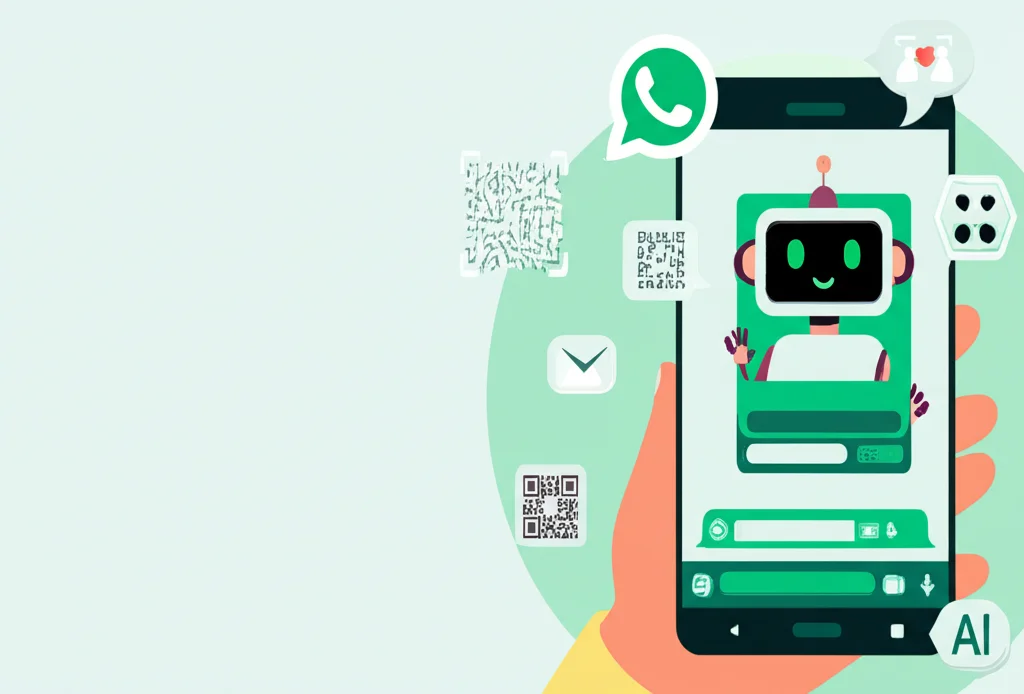
With OCLauncher, you skip all of that. The entire WhatsApp connection takes one QR code scan from your browser — no terminal, no config files, no SSH.
How It Works
OpenClaw connects to WhatsApp through the same “Linked Devices” feature you use to connect WhatsApp Web or WhatsApp Desktop. Your AI agent registers itself as a linked device on your WhatsApp account. Messages arrive in real time, and the agent responds through the same connection.
This means:
- No bot account needed — the agent uses your existing WhatsApp number
- No API tokens to manage — authentication happens entirely through QR code scanning
- No phone number verification — just point your camera and you are connected
Compare this to Telegram (where you need to create a bot via BotFather and paste a token) or Discord (where you need to register an app in the Developer Portal, create a bot, generate a token, and configure OAuth scopes). WhatsApp is the simplest channel to set up — if you have the right infrastructure behind it.
The Setup Flow
After signing up for OCLauncher and launching your instance (which takes about 30 seconds), you will land on the channel setup page. Here is what the WhatsApp connection looks like:
Step 1: Choose Your Number Mode
You pick between two options:
- Personal Number — Use your own WhatsApp number with self-chat mode enabled. This means you can message yourself to talk to the bot. This is the most common choice.
- Dedicated Number — Use a separate SIM or virtual number for the bot. Good if you want a distinct “bot identity” on WhatsApp.
Step 2: Add Your Phone Number
Enter your phone number in international format (e.g., +15551234567). This number gets added to the allowlist — only numbers you approve can message the bot, so there is no risk of strangers triggering AI responses on your account.
Step 3: Scan the QR Code
Click “Start Pairing” and a QR code appears directly in your browser. On your phone, open WhatsApp, go to Settings > Linked Devices > Link a Device, and scan the code.
The QR code refreshes automatically every 60 seconds, so there is no rush. Once your phone recognizes the code, the connection establishes in a few seconds. The dashboard automatically detects the successful pairing and moves you to the next step — no button to click, no confirmation to type.
Behind the scenes, OCLauncher runs the OpenClaw CLI inside your dedicated cloud sandbox and streams the QR code to your browser in real time. You never touch a terminal.
Step 4: Done
That is it. Your AI agent is now linked to WhatsApp. Send it a message from your phone and you will get a response.
Managing WhatsApp After Setup
Once connected, the Channels page in your dashboard gives you full control:
| Setting | What It Does |
|---|---|
| Self-chat mode | Toggle whether you can message yourself to chat with the bot |
| DM policy | Choose between “Allowlist only” (recommended) or “Anyone” |
| Allowed numbers | Add or remove phone numbers that can message the bot |
| Disconnect | Unlink the device and remove all WhatsApp credentials |
The connection status shows a live indicator — green when active, gray when disconnected. If the connection drops (which can happen after WhatsApp updates or long periods of inactivity), you can re-pair with another QR scan from the same page.
Why Self-Hosting WhatsApp Is Harder Than It Looks
If you have looked into running OpenClaw with WhatsApp on your own server, you have probably encountered these challenges:
- Always-on requirement — WhatsApp’s linked device protocol needs a persistent connection. If your server goes down, the session drops and you need to re-pair. This means running a process manager like PM2 or systemd, monitoring uptime, and handling restarts.
- Single instance limit — Only one Gateway instance can manage a WhatsApp session at a time. Running multiple instances causes session conflicts.
- Session storage — WhatsApp session credentials must persist across restarts. If you lose them (misconfigured volume mounts, accidental deletion), you re-pair from scratch.
- Network stability — The Baileys library (which OpenClaw uses for WhatsApp) maintains a WebSocket connection. Network interruptions, DNS issues, or firewall changes can silently break the connection.
- No dashboard — On a self-hosted setup, you manage WhatsApp through config files and CLI commands. There is no visual QR code flow — you get a text-based QR in your terminal and need SSH access to see it.
OCLauncher handles all of this. Your instance runs in a dedicated cloud sandbox with persistent storage, automatic recovery, and 24/7 uptime. The QR code streams directly to your browser. If something goes wrong, the platform detects it and restarts the process.
What Can You Do With a WhatsApp AI Assistant?
Once connected, your OpenClaw agent responds to WhatsApp messages with the full power of the AI model you have configured (Claude, GPT, Gemini, or any provider via BYOK). Some things people use it for:
- Quick answers on the go — ask questions from your phone without opening a laptop
- Language translation — send a message in one language, get a response in another
- Writing help — draft emails, messages, or social media posts from a WhatsApp chat
- Daily briefings — set up scheduled messages with news summaries or task reminders
- Family assistant — add family members to the allowlist so everyone can use the AI
- Voice messages — send voice notes and get text responses (OpenClaw supports speech-to-text)
And because OpenClaw supports 700+ skills from ClawHub, you can extend your WhatsApp assistant with integrations for Notion, Google Calendar, GitHub, smart home devices, and more — all manageable from the OCLauncher dashboard.
Troubleshooting Common Issues
Even though the setup is straightforward, there are a few situations you might run into. Here is how to handle them.
QR Code Not Loading
If the QR code does not appear after clicking “Start Pairing,” your OpenClaw instance may still be booting up. Wait 10-15 seconds and try again. If the problem persists, check the instance status indicator on your dashboard — if it shows the instance as stopped or restarting, wait for it to return to a running state before attempting the pairing flow. In rare cases, a browser extension (particularly ad blockers or privacy tools) can interfere with the real-time QR code stream. Try disabling extensions or using an incognito window.
Phone Shows “Linked Device” but Dashboard Says Disconnected
This happens when the WhatsApp session was established but the server-side connection dropped before the dashboard could confirm it. Go to your phone’s WhatsApp settings under Linked Devices, remove the OCLauncher entry, and scan a fresh QR code. The old session is no longer valid and needs to be replaced.
Messages Not Arriving to the Bot
First, confirm that the sending phone number is on the allowlist. If you are using “Allowlist only” mode (the default), only approved numbers can trigger responses. Second, check that self-chat mode is enabled if you are messaging yourself. Third, verify that the connection status on the Channels page shows green. A gray indicator means the WhatsApp session has dropped and needs re-pairing.
Multiple Device Conflicts
WhatsApp allows up to four linked devices at a time. If you have already linked four devices (WhatsApp Web on multiple browsers, WhatsApp Desktop, a tablet), you will need to remove one before OCLauncher can connect. Go to Settings > Linked Devices on your phone and unlink a device you no longer use.
Session Expired After Inactivity
WhatsApp may unlink a device if it has been inactive for an extended period (typically 14 days without any data exchange). If this happens, the dashboard will show a disconnected status. Simply start a new pairing from the Channels page — the process is the same one-scan flow. OCLauncher stores your channel configuration (allowed numbers, self-chat mode, DM policy) separately from the WhatsApp session, so your settings are preserved even when you need to re-pair.
What to Do After Connecting
With WhatsApp linked, there are several ways to get more out of your AI assistant beyond basic question-and-answer conversations.
Set Up Auto-Replies and Behaviors
OpenClaw lets you configure agent behaviors through the dashboard’s Settings page. You can define a system prompt that shapes how the agent responds — for example, instructing it to always reply in a specific language, keep responses concise for mobile reading, or adopt a particular tone. These settings apply across all channels, so your WhatsApp assistant behaves consistently with any other connected platforms.
Configure Business Hours
If you are using the assistant for work or sharing it with a team, you can set active hours so the bot only responds during specific time windows. Outside those hours, messages are either ignored or met with a configurable away message. This prevents the assistant from responding to late-night messages or generating token usage when you are not monitoring it.
Add Team Members or Family
The allowlist is not limited to a single number. Add colleagues, family members, or collaborators so they can each interact with the same AI assistant from their own WhatsApp accounts. Each person’s conversation is tracked separately, and you retain full control over who has access. Removing a number from the allowlist immediately stops the bot from responding to that person.
Install Skills from ClawHub
Browse the ClawHub skill marketplace from your dashboard to extend your assistant’s capabilities. Skills add specific functionality — connecting to Google Calendar for scheduling, querying a database, posting to social media, or controlling smart home devices. Once a skill is installed, it becomes available in all channels, including WhatsApp.
Security Considerations
WhatsApp connections through OCLauncher are designed with data isolation in mind. Each user gets a dedicated cloud instance — there is no shared infrastructure between accounts. Your WhatsApp session credentials are stored on a persistent volume attached exclusively to your instance, encrypted at rest.
The connection between your phone and the OpenClaw gateway uses WhatsApp’s end-to-end encryption protocol. OCLauncher does not intercept, store, or log the content of your WhatsApp messages beyond what is needed for the AI agent to process and respond to them. Message history is held in your instance’s memory during the active session and is not written to any external database.
Your instance communicates with the AI model provider (Anthropic, OpenAI, Google, or your own BYOK endpoint) over HTTPS. API keys are encrypted with AES-GCM before storage and are never exposed in plaintext through the dashboard or API. If you delete your instance, all data — including WhatsApp credentials, conversation history, and configuration — is permanently removed from the platform.
Try It
OCLauncher is available for $19/month with 3M tokens — cancel anytime. You can have WhatsApp connected and chatting with your AI agent in under 5 minutes.
If you prefer to self-host, we have a step-by-step guide for deploying OpenClaw on Fly.io that covers the full manual setup.