Connect Your AI Agent to Telegram — Complete Setup Guide
Turn your Telegram into an AI-powered assistant in under 5 minutes. Create a bot, paste one token, and start chatting — no server setup required.

OCLauncher Team
Building AI tools that work while you sleep.
Connect Your AI Agent to Telegram — Complete Setup Guide
Most Telegram bots work like vending machines. You press a button, you get a fixed response. Type /start and you see a menu. Type /help and you get a list of commands. Everything is rigid, pre-programmed, and predictable.
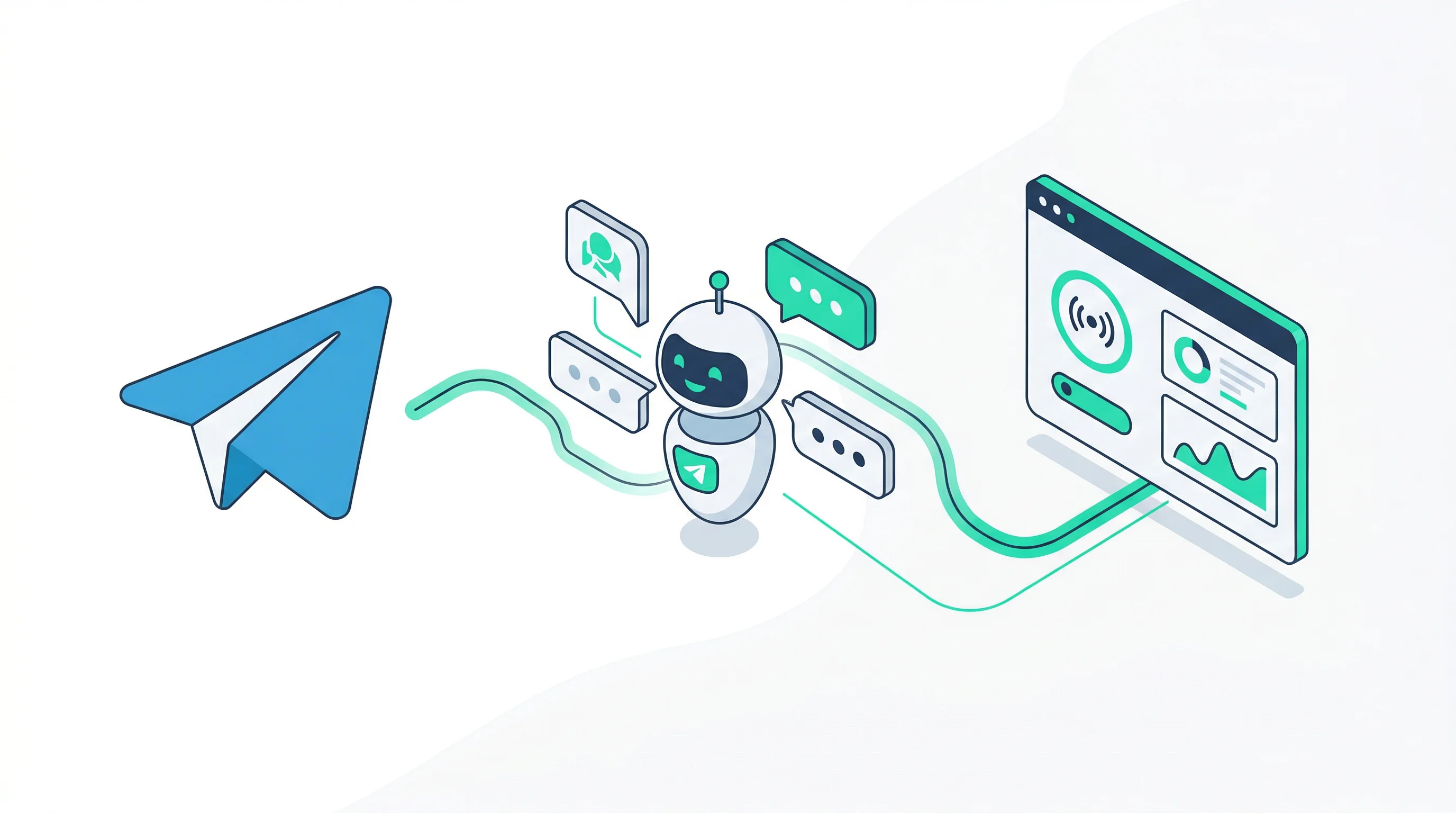
An AI agent on Telegram is different. It reads your messages, understands context, remembers previous conversations, and responds like a person — not a command tree. Ask it a question in plain language and it gives you a real answer. Ask a follow-up and it knows what you were talking about.
This guide walks you through connecting your OpenClaw agent to Telegram. The whole process takes under five minutes.
What You Need
- An OCLauncher account with a running instance
- A Telegram account
- About 3 minutes
That is it. No server, no command line, no webhook configuration.
Step 1 — Create a Telegram Bot
Every Telegram bot needs a token from @BotFather — Telegram’s official bot for creating bots.
- Open Telegram and search for @BotFather (look for the verified blue checkmark)
- Send
/newbot - Choose a display name for your bot — this is what people see in conversations (e.g. “My AI Assistant”)
- Choose a username — must end with
bot(e.g.myai_assistant_bot) - BotFather gives you an API token that looks like
123456789:ABCdefGhIjKlmNoPQRsTuVwXyZ - Copy the token — you will paste it in the next step
Your bot now exists on Telegram, but it does not do anything yet. It needs a brain — that is where your OpenClaw agent comes in.
Step 2 — Connect in OCLauncher
- Open your OCLauncher dashboard
- Go to Channels and select Telegram
- Paste the bot token from BotFather
- Click Connect
OCLauncher validates the token, links it to your running OpenClaw instance, and starts listening for messages. Your bot is now live.
Open Telegram, find your bot by its username, and send a message. Your AI agent responds.
Step 3 — Configure Who Can Message Your Bot
By default, your bot uses pairing mode — when someone messages your bot for the first time, they receive a pairing code. You approve or reject the code in your OCLauncher dashboard. This gives you full control over who gets access.
You can change this in Channels → Telegram settings:
| Policy | Behavior | Best For |
|---|---|---|
| Pairing (default) | New users get a code you approve | Personal assistant, small team |
| Allowlist | Only specific Telegram user IDs can message | Controlled access, known users |
| Open | Anyone can message the bot | Public bots, community support |
| Disabled | All DMs blocked | Temporarily turning off the bot |
For a personal assistant, pairing mode works well — you approve your own account once and you are set. For a customer-facing bot, switch to open mode so anyone can start a conversation.
What Can You Do With It?
Once connected, your Telegram bot has all the capabilities of your OpenClaw agent. Here are some things people use it for:
Personal assistant on the go:
“What’s on my calendar tomorrow?”
“Remind me to call the dentist on Friday.”
“Summarize the article at this URL.”
Customer support for your business:
“What are your business hours?”
“Do you deliver to Kowloon?”
“I’d like to book a table for 4 on Saturday at 7pm.”
Your agent responds based on the knowledge and tools you have configured — business hours, pricing, FAQs, or connected apps like Google Calendar and Notion.
Group chat assistant:
Add your bot to a Telegram group and it can answer questions, moderate conversations, or provide information to all members. Group policies are configured separately from DM policies, so you can have different rules for each.
Multi-Channel: Same Agent, Multiple Platforms
Your Telegram bot runs on the same OpenClaw instance as your other channels. If you have already connected WhatsApp, the same agent handles both — same knowledge, same tools, same personality.
A customer can message you on WhatsApp, your coworker can reach you on Telegram, and your Discord community can ask questions — all handled by one agent with one set of instructions.
Telegram vs WhatsApp — Which Should You Connect?
Both. But if you have to pick one:
| Telegram | ||
|---|---|---|
| Bot support | Native — Telegram was built for bots | Linked device — works but more fragile |
| Setup | Paste a token | Scan a QR code |
| Groups | Bot can join groups natively | Limited to broadcast-style |
| User base | Strong in tech communities, crypto, Asia/Europe | Dominant globally, especially business |
| API stability | Very stable, well-documented | Unofficial linked device API |
Telegram is the better platform for bots — it was designed for them. WhatsApp has the larger user base. Connect both and let your users choose how they want to reach you.
Troubleshooting
Bot does not respond:
- Check that your OCLauncher instance is running (Dashboard → Status)
- Verify the bot token is correct — regenerate from @BotFather if needed
- Make sure DM policy is not set to “disabled”
Pairing code not appearing:
- The person messaging must be a new sender — if they were previously paired, they do not get a new code
- Check the Pairing page in your dashboard for pending requests
Messages are slow:
- Response time depends on your AI model and prompt length — see Why Your AI Agent Is Burning Through Tokens for optimization tips
Try It
Sign up for OCLauncher — $19/month with 3M tokens included, cancel anytime. Connect Telegram in under five minutes and start chatting with your AI agent from your phone.
Your bot is waiting. Send it a message.