Automate Your Invoices with AI — Google Docs, Drive, and Sheets
Stop copy-pasting invoice details into spreadsheets. Let your AI agent create invoices in Google Docs, file them in Drive, and track every payment in Google Sheets.

OCLauncher Team
Building AI tools that work while you sleep.
Automate Your Invoices with AI — Google Docs, Drive, and Sheets
If you freelance or run a small business, you know the drill. You finish a project, open Google Docs, copy your invoice template, manually fill in the client name, the line items, the dates, the totals. Then you save it to some folder in Drive that you hope is the right one. Then you open your spreadsheet and add another row — client, amount, date sent, status: unpaid.
It takes 10 minutes. It’s not hard. But it’s the kind of thing you forget about until it’s too late, and then you’re chasing payments three weeks after the work was done.
What if you could just tell someone to handle it?
Meet Your Invoice Assistant
With OpenClaw running on OCLauncher, you can connect your Google Workspace account and let your AI agent manage the entire invoicing workflow. No spreadsheet formulas to maintain, no folder structures to remember, no copy-pasting between tabs.
Here’s what the system looks like in practice:
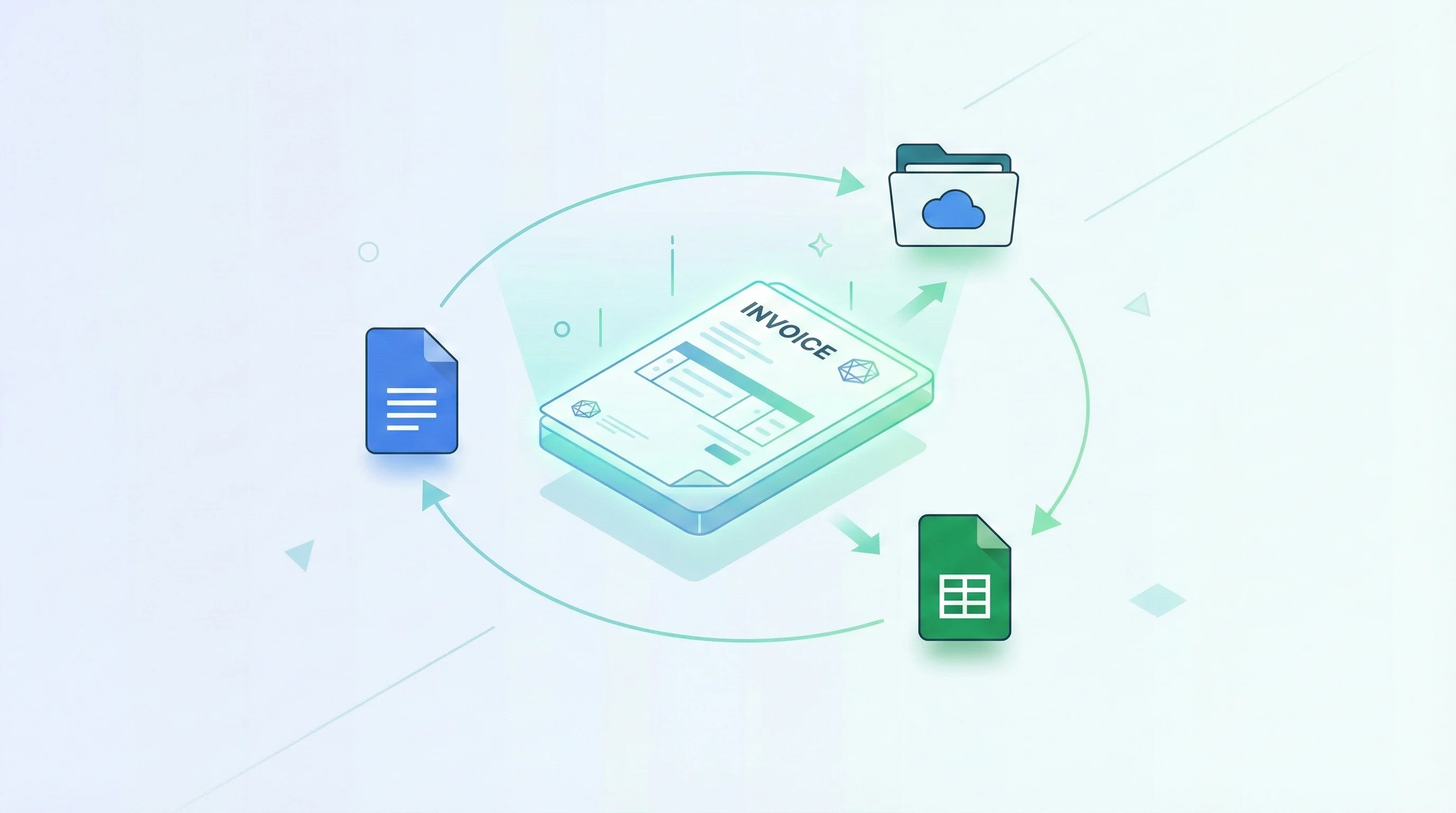
- Google Docs — Your agent creates professional invoices from a template you define. Client name, line items, amounts, due dates — all filled in automatically.
- Google Drive — Every invoice gets filed in an organized folder structure. By client, by month, by year — however you want it.
- Google Sheets — The agent logs every invoice in a tracking spreadsheet with columns for client, amount, date, and payment status. When a client pays, you tell the agent and it updates the row.
The three pieces work together. One message from you triggers the whole chain — the invoice gets created, filed, and tracked in a single step.
What You’d Actually Say
This isn’t about learning commands or filling out forms. You talk to your agent the same way you’d ask a colleague for help:
“Create an invoice for Acme Corp — $2,400 for the February website redesign, due in 30 days.”
The agent creates the document in Google Docs using your template, saves it to your Invoices/Acme Corp/2026-02 folder in Drive, and adds a new row to your invoice tracker in Sheets.
“Mark the January invoice for Bright Studio as paid.”
The agent finds the row in your spreadsheet, updates the status to “Paid,” and fills in today’s date as the payment date.
“How much is still outstanding this quarter?”
The agent reads your tracking sheet, filters for unpaid invoices from Q1 2026, and gives you the total.
“Send me a summary of all unpaid invoices over 30 days.”
You get a list with client names, amounts, and how many days each invoice has been outstanding. No digging through spreadsheets.
Getting Connected
Setting up the Google Workspace connection takes about two minutes:
- Go to your OCLauncher dashboard and open the Integrations page
- Click “Connect” next to Google — this starts a standard OAuth flow where you grant access to Docs, Drive, and Sheets
- Authorize the permissions — your agent gets read/write access to the specific Google services it needs, nothing more
That’s it. Once connected, your agent can create documents, organize files, and read or write spreadsheets on your behalf. You can revoke access at any time from the same dashboard page.
Set Up Your Template
The most useful step is creating an invoice template in Google Docs that your agent knows how to fill in. This can be as simple as a document with placeholder fields:
| Field | Placeholder |
|---|---|
| Client name | {{client}} |
| Invoice number | {{invoice_number}} |
| Date | {{date}} |
| Line items | {{items}} |
| Total | {{total}} |
| Due date | {{due_date}} |
Tell your agent where the template lives, and it will duplicate it for each new invoice, replacing the placeholders with real data. You keep full control over the formatting and layout — the agent just fills in the blanks.
Invoice from Your Phone
Here’s where it gets interesting. If you’ve already connected WhatsApp to OpenClaw, you can create invoices straight from your phone.
Finish a meeting, pull out your phone, and send a WhatsApp message:
“Invoice ClientName for 3 hours of consulting at $150/hour.”
By the time you’re back at your desk, the invoice is created, filed, and tracked. No laptop required.
This is especially useful for freelancers who work on-site or travel frequently. The invoicing happens in the background while you move on to the next thing.
Why This Beats Dedicated Invoice Software
You might be wondering — why not just use FreshBooks, or Wave, or one of the dozen other invoicing tools?
You absolutely can. But if you’re a freelancer or small team that already lives in Google Workspace, adding another subscription and another login for something you do a few times a month feels like overkill. Your agent works with the tools you already have — Docs, Drive, Sheets. No new accounts, no new interfaces, no migration.
And because it’s an AI agent, not a rigid form, it adapts to how you work. You don’t have to fit your workflow into someone else’s software. Just describe what you need in plain language.
Try It
Plans start at $19/month with 3M tokens — no contracts, cancel anytime. Connect your Google account, set up an invoice template, and see how it feels to manage your invoicing with a single message instead of ten minutes of copy-pasting.
If you’re already using OCLauncher, head to the Integrations page on your dashboard to connect Google Workspace. Your agent is ready to start filing invoices the moment you say the word.